
How to use the Tasks page
Keep one to-do list for all your Flow Club sessions: plan before you book, bring tasks into a live session, and pick up where you left off.
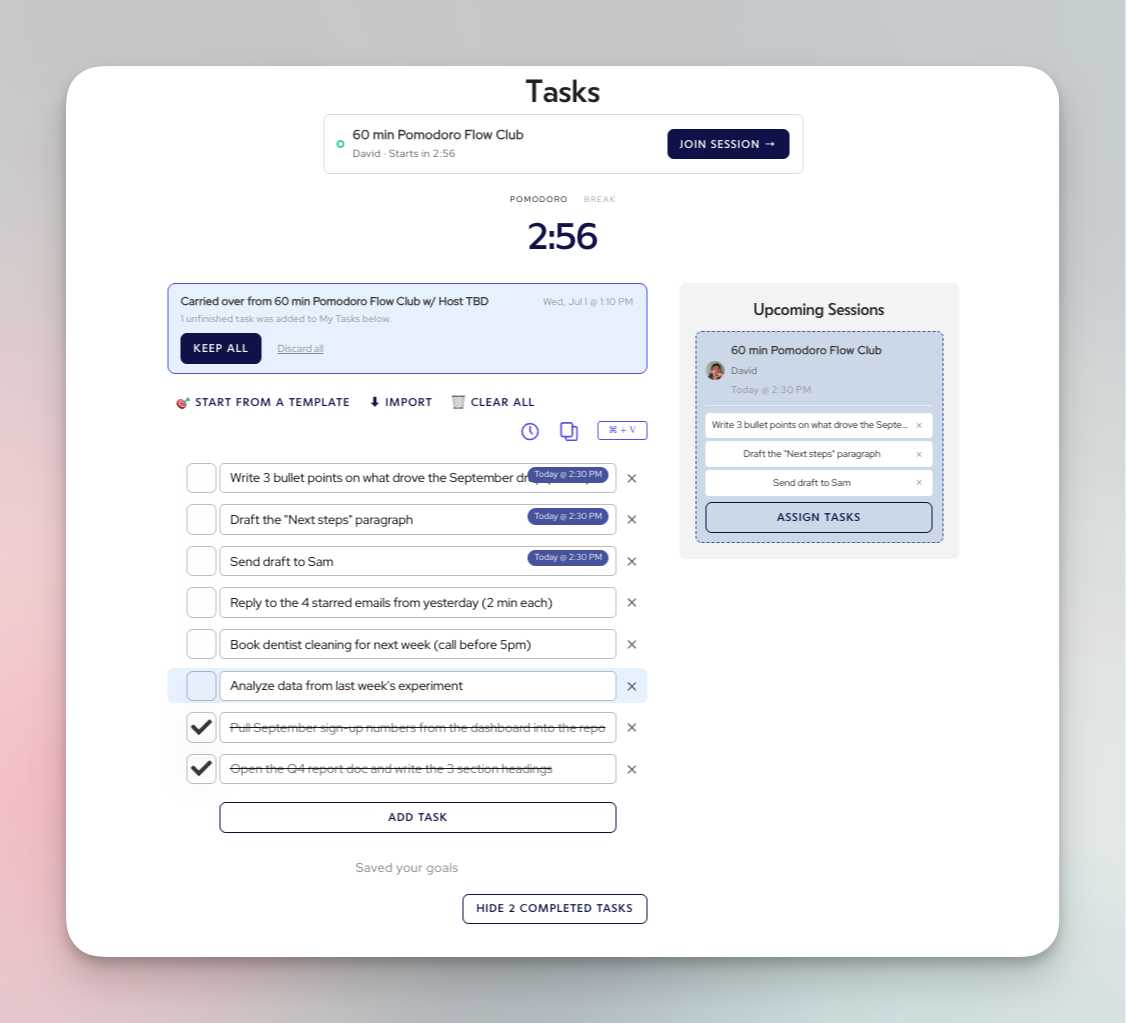
The Tasks page is your to-do list inside Flow Club. You can add tasks, start from a ready-made list, bring in tasks from another app, and line them up for the sessions you've booked. When you join a session, your tasks come with you. When you finish a session, incomplete tasks can be carried back to the Tasks page.
To get there, click Tasks in the top menu, or go to in.flow.club/tasks.
Add tasks
Type a task in the box at the bottom of your list. Hit enter or click add task to get new empty rows. Check a task off when it's done (🎉 confetti included)
Copy / Paste tasks
Have a list copied already? Click on an empty row, then press ⌘ + V (Mac) or Ctrl + V (Windows) on the page to paste it in. Each line becomes its own task.
Working to a timer
There's a built-in Pomodoro timer at the top of the page (25 minutes of work, then a break), so you can work through your list even between sessions. Start the timer any time to start a solo work session. If you have a session coming up, the timer will count down to your next session so you can join the session on-time!
Start from a template
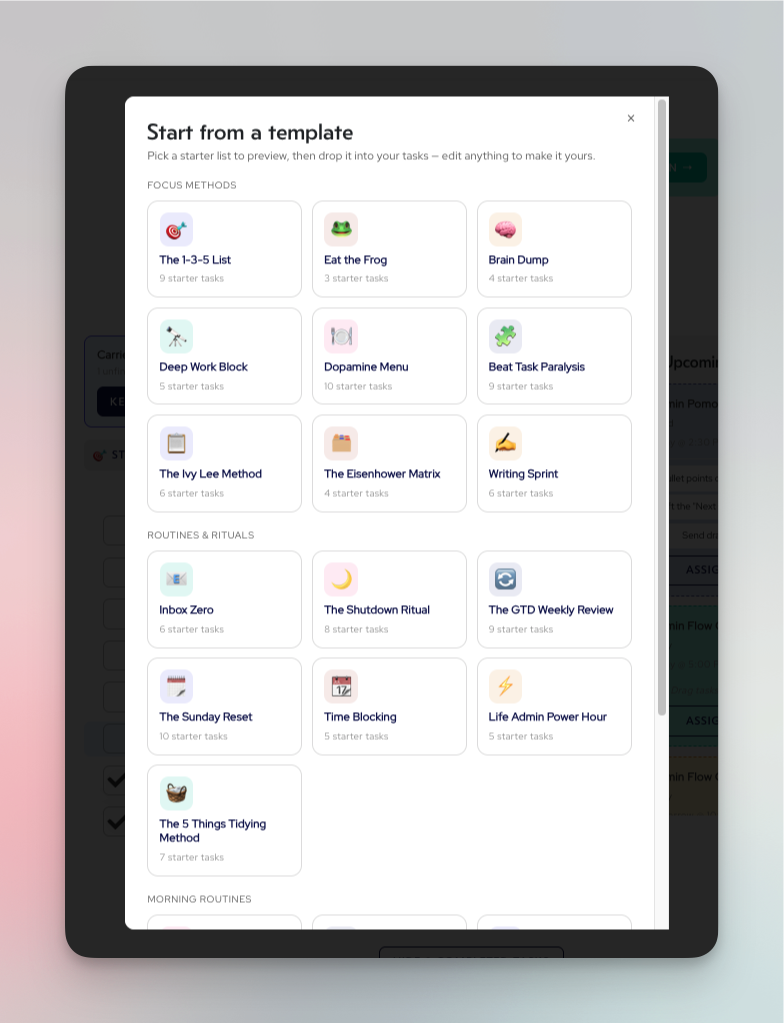
Not sure where to begin? Templates give you a starter list based on a well-known focus method or routine.
Click Start from a template.
Pick a template to preview its tasks.
Click Add tasks to my list. You can edit or delete anything after.
Import tasks from another to-do list
Already keep a list somewhere else? Bring it over in a few seconds. Click Import at the top of your list. You'll see two options.
Option 1: Paste a list (works with any app)
Paste a checklist, or any list with one task per line, into the box and click Add tasks. Checkbox formats like works too:
- [ ] Email Sam
and putting an x in the brackets shows up as already checked off:
- [x] Email Sue
Here's how to copy your list from popular apps:
App | How to copy your list |
|---|---|
Notion | Select your to-do blocks, copy, and paste. |
Things | Select your to-dos, copy, and paste. |
Apple Reminders | Select your reminders (⌘ + A), copy, and paste. Each title comes in on its own line. |
Apple Notes | Copy a checklist from a note and paste. |
Google Keep | Open the checklist, click ⋮, then Copy to Google Docs. Copy the Doc's text and paste. |
TickTick | Go to Settings → Backup to download a CSV file. Open it in a text editor, then copy and paste. |
Goblin Tools | Click Share → Export as Markdown. Open the file in a text editor, then copy and paste. |
Option 2: Import from Todoist
If you use Todoist, you can pull in all your active tasks at once.
In Todoist, go to Settings → Integrations → Developer and copy your API token. (An API token is a private key that lets another app read your Todoist list.)
In Flow Club, click Import, paste the token into the Todoist API token box, and click Import from Todoist.
This is a one-time import. Flow Club uses your token once to read your active tasks, then throws it away. We don't store it, log it, or change anything in Todoist. If you add new tasks in Todoist later, import again to bring them over.
Assign tasks to sessions you've booked
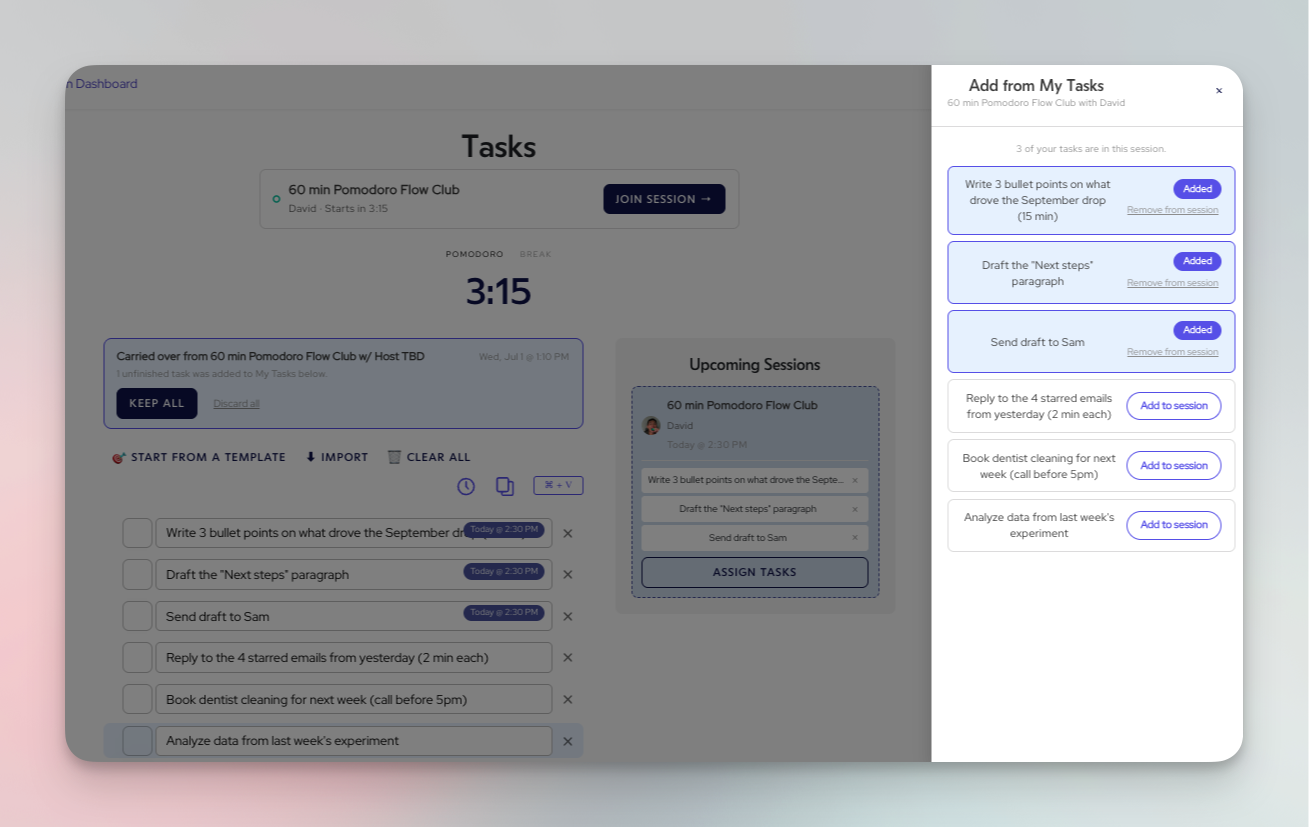
Plan ahead by deciding what you'll work on in each session before it starts. When you join, those tasks are already waiting for you.
Book a session from the Schedule.
On the Tasks page, find the task you want to work on.
Assign it to one of your upcoming sessions by dragging it over to the session under "Upcoming Sessions." Alternatively, click on "Assign tasks" under the session, and you'll see your tasks list slide out from the right-hand side. Add the tasks you want to the session.
Use your tasks during a session
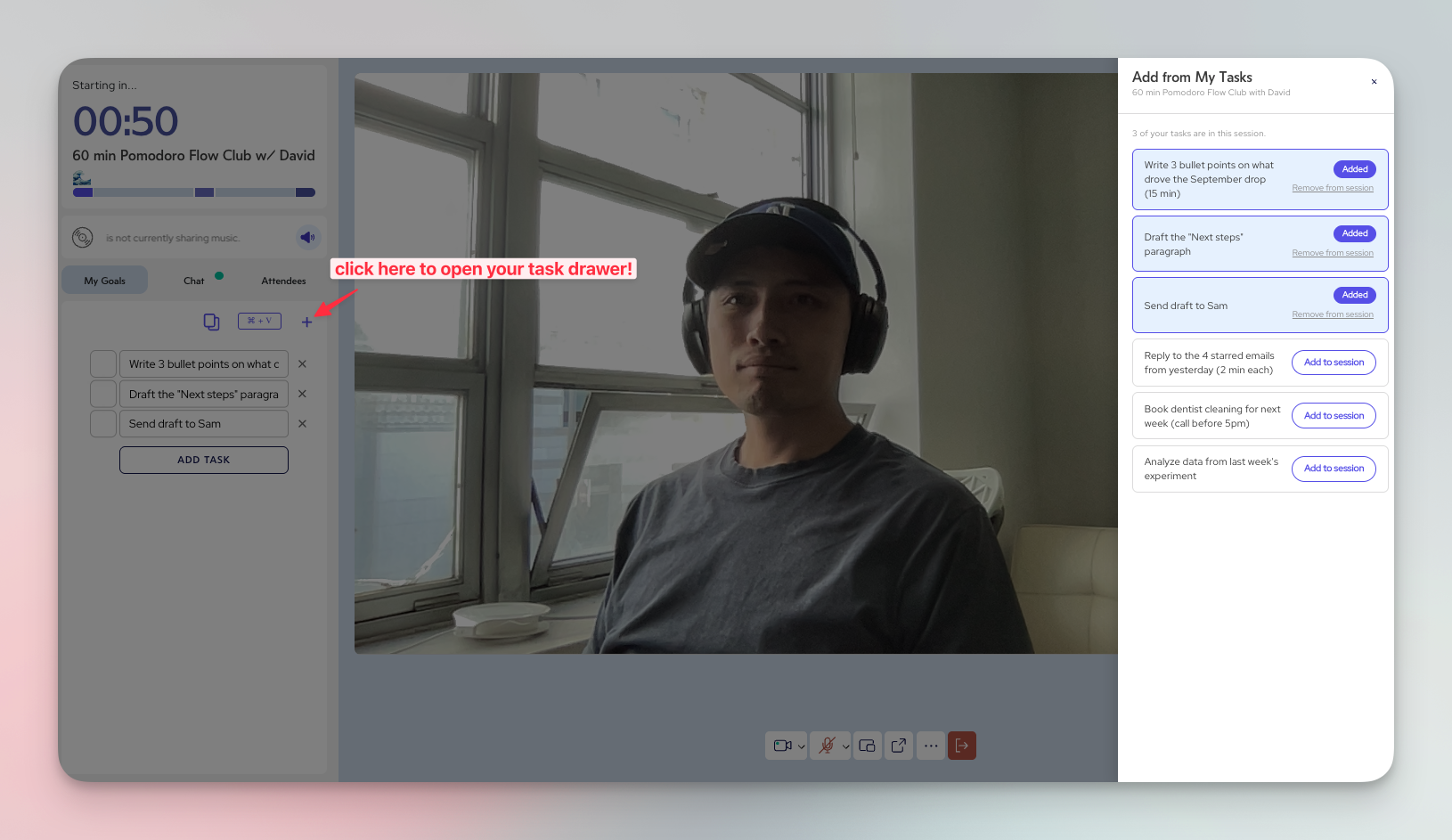
Your Tasks list is available inside every session, so you don't need to switch tabs.
Tasks you assigned to the session show up when you join.
Need something else? Open your task list from inside the session and bring in any other task.
Check tasks off as you finish them. Changes save to your Tasks page too, so your list stays in one place.
Pick up unfinished tasks from past sessions
Didn't finish everything? No problem. Tasks you don't check off in a session carry over, so nothing gets lost. You'll find them back on your Tasks page highlighted in light blue for you to decide if you want to keep them on your list.
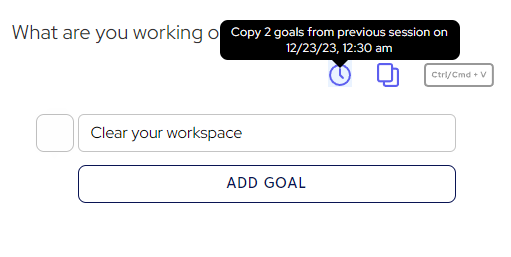
Of course, if you are hopping over to another session right away, you can always carry your unfinished tasks over to the next session by clicking on the clock icon.
Common questions
My tasks disappeared. If you added tasks while logged out, they're saved only in that browser on that device. Log in on the same device and browser to keep them in your account.
I see "Failed to save tasks." Refresh the page and check your list to make sure your tasks are saved. If the message keeps showing, email us at help@flow.club.
Does importing from Todoist keep the two lists in sync? No. It's a one-time copy. Run the import again to bring over new Todoist tasks.
Will "Clear all" delete my tasks for good? Yes. Clear all removes every task on your list, so use it with care.
Still stuck? Email help@flow.club and we'll help.